Image disapprovals are one of the most frustrating kinds because the photo usually looks fine to you. Google's algorithm, though, is reading the pixels — and it will flag a faint watermark, a tiny supplier logo, a thin "SALE" strip, or an image that's simply too small. The good news: these are concrete, fixable problems, and most of the fix happens on the Shopify side. This guide walks through the three image issues hitting Shopify stores right now — promotional overlays, generic/placeholder images, and the new 500x500px minimum — with step-by-step fixes for each.
If you're not sure which of these is affecting your products, you can run a free scan at shopflixai.com and it will check your storefront and feed against Google's image policies and point to the exact products and photos that need attention.
"Promotional overlay on image" — what the error actually means
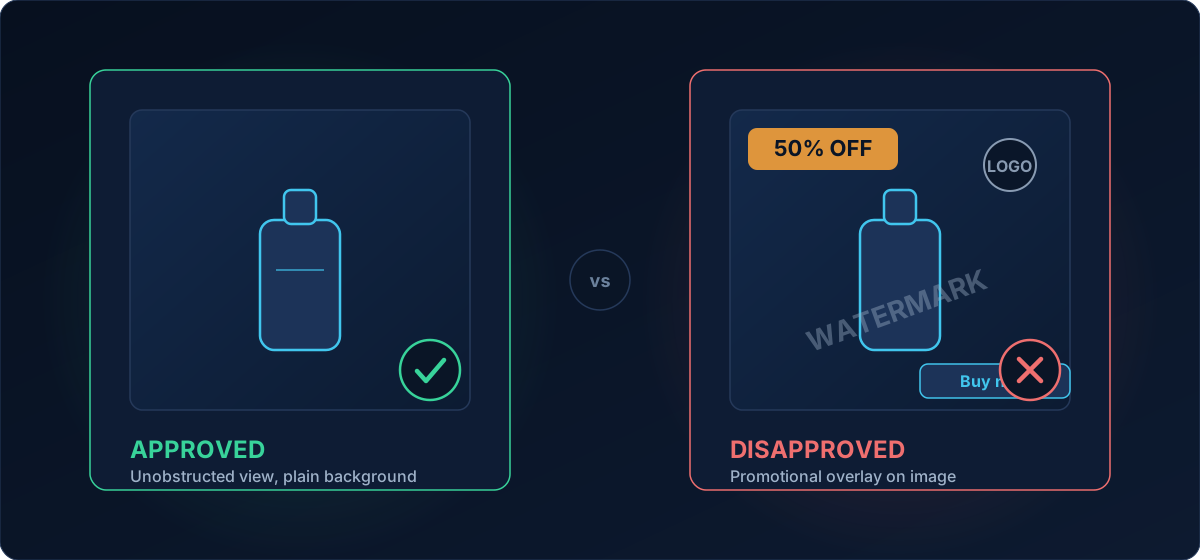
The label you see in Merchant Center reads "Promotional overlay on image [image_link]". The underlying policy is Google's text on image / promotional overlay rule, and it requires an image with an unobstructed view of the product. Google specifically prohibits these elements baked into the photo:
- Promotional text — discount or price callouts like "50% off", "Free shipping", "Best seller"
- Retailer or brand logos placed over the product
- Calls to action — "Buy now", "Shop today"
- Watermarks — including faint or semi-transparent ones
Many third-party guides also tell you to avoid borders, frames, and colored background strips. That's reasonable best practice, but note it isn't Google's exact wording in this policy — Google calls out promotional text, logos, calls to action, and watermarks specifically. A clean, edge-to-edge product shot on a plain (usually white) background is always the safest bet.
The single biggest source of these disapprovals is dropshipping. AliExpress and other supplier images frequently arrive with embedded watermarks, supplier logos, or marketing text. Stripping those out manually is tedious, which is exactly why so many merchants get stuck here.
How to fix a promotional overlay on a Shopify product image
You have four real options. Start at the top — fixing it at the source in Shopify is cleanest.
1. Upload a clean image as the primary product media. This is the proper fix. In your Shopify admin, open the product, delete the marked-up photo, and upload a version with no text, logo, or watermark. Critical detail: Google evaluates your main product image — the largest size, which Shopify maps to the feed's image_link (image_1). So the clean photo must be set as the primary/first image, not just added as a secondary one. Editing a variant image or a gallery image lower down won't fix the disapproval.
2. Pick a different, already-clean image you have. If one of your other product photos is clean, drag it to the first position so it becomes the primary image.
3. Get unmarked originals — or remove the overlay yourself. For dropshipping, ask the supplier for the original watermark-free files; many will provide them. If that's not possible, use an image editor or an AI watermark-removal tool to clean the photo before uploading.
4. Use a supplemental feed to override the URL. More advanced: in Merchant Center you can supply a supplemental feed that replaces the image_link for specific products with a clean image hosted elsewhere.
There's also a fifth, hands-off option from Google itself.
Should you turn on Merchant Center's automatic image improvements?
Automatic image improvements is a Merchant Center feature that, when enabled, attempts to remove any text, watermark, overlay, or logo it detects in your image. If it succeeds, it replaces the image and the product gets approved.
For Shopify-connected accounts you enable it under Products > Automations tab > View details > toggle it on.
It's genuinely useful for large catalogs where editing every photo by hand isn't realistic. The honest caveat: it's automated processing of your images. The overlay may sometimes remain untouched, or another part of the image could be cropped or altered in the process. Treat it as a safety net, not a substitute for clean source photos — and spot-check the results. If image quality is core to your brand, fixing the source image in Shopify gives you full control.
Generic and placeholder images
A separate but related rejection comes from the generic/placeholder image rule. Google requires the main image to clearly show the principal product being advertised — and it explicitly disallows logos and "No image available" graphics as the main image.
This catches stores that haven't uploaded real photos yet, or that use a brand logo or a stock "coming soon" graphic as the product image. Fix: upload an actual photo of the product as the primary image. Every product in your feed needs a real, recognizable picture of what you're selling.
The new 500x500px minimum size rule (and what to do now)
This is the change everyone's asking about, so let's be precise about the timeline.
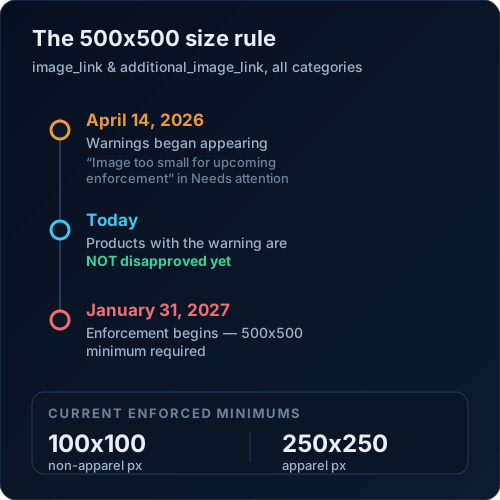
Today's minimums (image requirements) are still:
- 100 x 100 pixels for non-apparel products
- 250 x 250 pixels for apparel products
If a product is under those, you'll see "Image too small [image_link]" and it's disapproved now.
The upcoming change: Google is raising the minimum resolution for both image_link and additional_image_link to 500 x 500 pixels across all categories and marketing methods. Per Google's announcement, warnings began appearing on April 14, 2026, and enforcement begins January 31, 2027. So if you're seeing the warning now, your products are not disapproved for it yet — you have time to act before enforcement.
The pre-enforcement warning is labeled "Image too small for upcoming enforcement" and shows up in the Needs attention section. Google has also said it will optimize some sub-500x500 images on its own (using high-resolution near-duplicates or AI upscaling) so they meet the requirement without you doing anything — these are flagged so you can replace them with your own higher-res file if you prefer.
What to do: don't aim for the bare minimum. 500x500 is the new floor, not the recommended size. Google and most practitioners recommend roughly 800x800 or larger, with 1500x1500 or higher considered ideal for crisp display across Shopping surfaces. Re-export your product photos at high resolution and upload them in Shopify now, while it's a warning and not a disapproval.
The Merchant Center fix-it workflow
To work through image issues at scale:
- Go to Products > Needs attention in Merchant Center.
- Use the filter to isolate the affected products (by issue type).
- Either edit each product individually, or download the CSV, update the
image_linkURLs in your data source, and reupload. - If you're working in Shopify, fix the primary product image there and let the feed re-sync.
One overlooked trick: changing the image URL (not just swapping the file at the same URL) forces Google to re-fetch faster. Reusing the same image_link with new content behind it leads to a longer delay.
Why your product is still disapproved after you "fixed" it
This trips up almost everyone. Image fixes typically take 24-72 hours to reflect on the Needs attention page. Two things slow it further:
- Reusing the same image URL. If the file at the old URL changed but the URL is identical, Google re-fetches on its own slower schedule. A brand-new URL re-fetches faster.
- Fixing the wrong image. Remember, only the primary image is sent as
image_link. If you cleaned a secondary or variant image, the disapproval stays.
If 72 hours pass and the product is still flagged, double-check that the clean photo is actually the first image on the product and that your feed has re-synced.
Stop playing whack-a-mole with image disapprovals
Fixing images one product at a time is fine for 20 SKUs. For hundreds or thousands, it's a grind — and new disapprovals keep appearing as you add products. The ShopFlix AI app installs into your Shopify store to auto-fix image and feed issues and monitor your catalog so you catch problems before Google does. And before you install anything, run a free scan at shopflixai.com to see exactly which images are flagged and why.
Frequently asked questions
What does "Promotional overlay on image [image_link]" mean in Google Merchant Center?
It means Google detected something layered on top of your product photo — promotional text, a logo, a call to action, or a watermark. The [image_link] part is the specific image URL it's complaining about. The fix is to supply a clean image showing only the product.
What exactly counts as a promotional overlay — does a small brand logo or watermark count?
Yes. Google's policy specifically names promotional/sale text, retailer or brand logos, calls to action, and watermarks — including faint or semi-transparent ones. Even a small, low-opacity watermark in a corner can trigger the disapproval, which is why a "clean-looking" photo can still get flagged.
Are borders, frames, or colored backgrounds around a product image allowed?
Google's text-on-image policy explicitly targets text, logos, calls to action, and watermarks rather than borders. Many guides still advise avoiding borders and frames as best practice, and a plain background with an unobstructed view of the product is always the safest choice. Treat heavy borders or decorative frames as a risk, not a guaranteed pass.
How do I remove text and watermarks from my Shopify product images?
Replace the marked-up photo with a clean version set as the primary product image. For dropshipping, ask your supplier for unmarked originals. If you can't get clean files, use an image editor or AI watermark-removal tool before uploading — or enable Merchant Center's automatic image improvements as a fallback.
Should I turn on Google's automatic image improvements, and what does it actually do to my images?
It tries to automatically remove detected text, watermarks, overlays, and logos, then replaces the image if it succeeds. It's helpful for big catalogs, but it's automated — the overlay might remain, or part of the image could be cropped. Enable it under Products > Automations for Shopify accounts, then spot-check results. For brand-critical imagery, fixing the source photo gives you more control.
What is the new 500x500 pixel minimum image rule, and when does Google start enforcing it?
Google is raising the minimum to 500x500 pixels for image_link and additional_image_link across all categories. Warnings started appearing on April 14, 2026, and enforcement begins January 31, 2027. Products aren't disapproved for this yet if you're only seeing the warning — you have until early 2027.
What are the current minimum image dimensions for non-apparel vs apparel products?
Right now the minimums are 100x100 pixels for non-apparel products and 250x250 pixels for apparel. Below these, the product is disapproved as "Image too small." These remain the enforced minimums until the 500x500 rule takes effect in January 2027.
Why is my product still disapproved after I already fixed/replaced the image?
Usually because the change hasn't propagated yet — image fixes take roughly 24-72 hours. Reusing the same image URL slows Google's re-fetch, so a new URL helps. Also confirm you replaced the primary image, since that's the only one sent to the feed as image_link.
What is a "generic" or "placeholder" image and why does Google reject it?
A generic or placeholder image is one that doesn't show the actual product — for example a brand logo or a "No image available" graphic used as the main image. Google requires the main image to clearly show the principal product being advertised, so these are disapproved until you upload a real photo.
How long does it take for Google to re-approve a product after I fix the image?
Typically 24-72 hours to reflect on the Needs attention page. Supplying a brand-new image URL (rather than swapping the file behind the same URL) tends to be faster because it forces an immediate re-fetch.
Stop guessing why Google flagged your store
Run a free scan to see the exact issues Google checks for — then install the ShopFlix AI app to fix them automatically and stay approved.
0 Comments
No comments yet — share your experience or ask a question below.
Leave a comment