If you sell on Shopify and run Google Shopping, sooner or later Google Merchant Center will ask you to verify something — your website, your identity, your business, or a stack of documents. Most merchants get stuck not because they're doing anything wrong, but because they're treating three completely separate steps as one big confusing wall. This guide untangles them, shows the exact order Google expects, and gives you a practical path through each check as a Shopify store owner.
The three checks people confuse
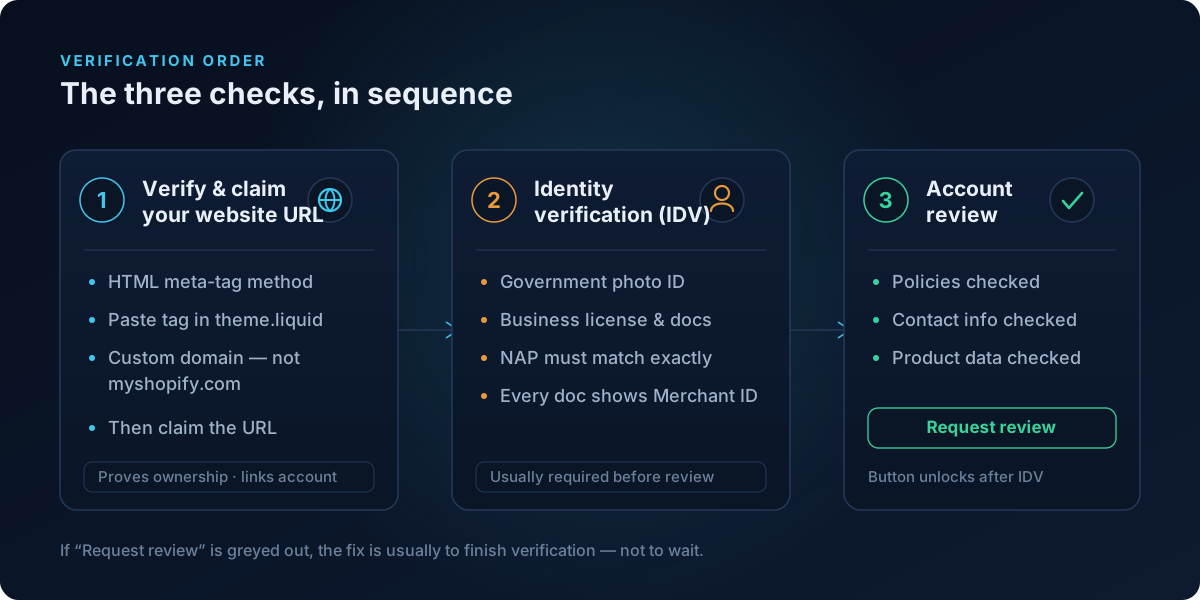
There are three distinct stages in Merchant Center, and mixing them up is the single biggest reason people spin their wheels:
- Online store URL verification and claiming — proves you own your website and links it to your Merchant Center account.
- Identity verification (IDV) — proves who actually runs the business (a person and, often, a legal entity).
- The account review — Google's check of your policies, contact info, and product data against its policies.
These happen in roughly that order. Critically, **identity verification usually has to be completed before the "Request review" button even becomes clickable.** Google's own documentation states you may need to complete other actions — such as IDV — before the review button becomes available. So if "Request review" is greyed out, the fix is almost never "wait" — it's "go finish your verification."
Before you touch any of this, it helps to know exactly which signals on your store are weak. You can run a free scan at shopflixai.com to see your policy pages, contact/trust signals, and product feed checked against Google Merchant Center policy in a couple of minutes — that tells you what to fix before you spend a review attempt.
Step 1: Verify and claim your Shopify website (the right way)
This trips up Shopify merchants constantly, so get the basics right:
- You cannot verify the default
myshopify.comdomain. You need a custom domain (e.g.yourbrand.com) connected as your primary domain in Shopify. - The automatic "e-commerce platform" and email methods frequently fail on third-party platforms. Google's recommended fallback is the HTML meta-tag method.
- In Merchant Center, choose website verification, pick the HTML tag option, and copy the
<meta>tag. - In Shopify go to Online Store > Themes > Edit code >
theme.liquidand paste the tag inside the<head>section, then save. - Use your primary domain without
wwwin the Merchant Center business info, and make sure it matches the URL you're verifying.
Once Google reads the tag, verify, then claim the URL so it's tied to your account. Verification proves ownership; claiming makes it exclusive to you.
Step 2: Pass identity and business verification
When Google asks to "verify identity," a popup or new tab is supposed to open. If clicking the button seems to do nothing, the most common cause is a blocked browser popup — allow popups for the Merchant Center domain, disable popup-blocking extensions, or try an incognito window or a different browser. That alone clears a surprising number of "the button is broken" cases.
For identity verification tied to payments, Google may request:
- A government-issued photo ID (driver's license or passport).
- A state/government-issued business license, if you operate as a business.
- Proof of current address — a bank statement, utility bill, or credit card bill — if the address on your documents doesn't match your profile. On a credit card statement, black out everything except the last four digits as Google instructs.
Two non-negotiables: every document you upload must include your Merchant ID, and the name, address, and phone (NAP) must match exactly across your website, Merchant Center, Google Ads, and your Google Payments profile. A slightly different business name, a Street vs St. mismatch, or an old address on a utility bill will quietly fail you. Also note: phone number verification has been mandatory for all merchants since January 2021 — skip it and the account can be suspended.
Step 3: The invoice / supplier document request (dropshippers, read this)
To confirm the products you advertise are genuinely yours to sell, Google may ask for supplier invoices or purchase orders. The requirement that catches people: any invoice you submit must include the supplier's business name and telephone number. A bare PDF receipt with no supplier details won't be accepted.
If you're dropshipping and have nothing like this:
- Ask your supplier or wholesaler for a proper invoice on their letterhead showing their business name, phone number, the items, and your business as the buyer.
- If you use a fulfillment platform, request an official purchase order or order confirmation that names the supplier entity.
- If you genuinely can't document a supply relationship for the products you're advertising, that's Google signalling a real problem — your store needs to look and behave like a legitimate retailer of those goods (authentic branding, real stock claims, accurate descriptions), not a thin reseller.
Step 4: The video verification (new, and not everyone gets it)
Through 2025 Google began asking some merchants — often after a misrepresentation flag — for a continuous, unedited video walkthrough (commonly cited as around three to five minutes) showing storefront or signage, staff/storage areas, and sample inventory. The goal is to confirm you actually operate the business and stock the products.
This is a rollout/test, not a universal requirement. If you're online-only or home-based and this lands in your account, record what you genuinely have: your workspace, your packing/storage area, and real product stock on camera in one unbroken take. Don't edit it. If you truly hold no inventory, this is a strong hint your model needs to align better with how you present the store.
Step 5: Don't burn your review attempts
You get a limited number of review attempts, and after failures a mandatory cool-down period kicks in during which "Request review" is greyed out. Google support cannot shorten or bypass that cool-down, and repeated failures can lengthen it. So the worst thing you can do is request a review before the actual root cause is fixed.
Fix first, then submit. The most common root causes are NAP mismatches, thin or missing policy pages, unclear "About us" / contact info, and product-feed problems. This is exactly where the ShopFlix AI app earns its keep — it can auto-fix the on-store policy, trust, and feed issues Google looks for and then monitor your store so a future edit doesn't silently break verification again.
Timelines: what's normal
- Identity verification for payments: if all requested documents are received, typically 2–3 business days; held payouts release within 3–5 business days after verification.
- Account review: up to 7 business days; once products are approved, they can appear across Google within about 24 hours.
"Stuck for weeks" usually means something is still incomplete or mismatched — not that Google forgot about you.
Frequently asked questions
What's the difference between website verification, identity verification, and the account review?
Website (URL) verification proves you own your site and links it to Merchant Center. Identity verification (IDV) proves who runs the business. The account review checks your policies, contact details, and product data against Google's policies. They're separate, and IDV typically must finish before you can even request the review.
Why does Google need to verify my identity and business, and is it mandatory?
It's part of Google's effort to confirm real, accountable businesses are advertising — protecting shoppers from fraud and misrepresentation. Phone verification has been mandatory for all merchants since January 2021, and identity verification is required whenever Google requests it. Reported (in third-party guides, not yet confirmed on official Google pages) is a broader rollout of mandatory IDV to all merchants across regions like the US, UK, EU, Canada, and Australia, often with a 30-day window to complete it — treat that as "reported" and check your own account.
What documents does Google accept, and what must invoices include?
For identity/payments verification: a government photo ID, a business license, and — if your address doesn't match — a bank statement, utility bill, or credit card bill (with all but the last four digits hidden). Supplier invoices, when requested, must show the supplier's business name and telephone number. Every document must include your Merchant ID, and be clear, current, and uncropped.
How do I verify my Shopify store, and why won't it work on myshopify.com?
The default myshopify.com domain is ineligible. Connect a custom primary domain, then use the HTML meta-tag method: copy the tag from Merchant Center and paste it into theme.liquid's <head> (Online Store > Themes > Edit code). Verify with your primary domain without www, then claim the URL.
I'm a dropshipper and Google wants supplier invoices I don't have — what do I do?
Ask your supplier for a real invoice or purchase order on their letterhead showing their business name and phone number. If no supplier will provide that for the products you advertise, Google is signalling that your store doesn't yet look like a legitimate seller of those goods — address that underlying gap rather than appealing repeatedly.
How long does verification take, and what if I miss the deadline?
Identity verification for payments is typically 2–3 business days once documents are in; held payouts release in 3–5. Account reviews take up to 7 business days. If a verification request has a deadline and you miss it, your products can be disapproved until you complete it — so respond promptly.
What is the new video identity verification?
A 2025 step where Google may ask for a single, unedited video (around 3–5 minutes) showing your storefront, staff/storage areas, and sample stock to prove you really operate the business. It's a limited rollout, often triggered after a misrepresentation flag — not something every account sees.
Why did verification fail even though my documents were genuine?
Usually it's not authenticity — it's a mismatch or technical issue: a NAP discrepancy across your site/Merchant Center/Ads/Payments, a missing Merchant ID on the document, blurry/cropped/expired files, an address that doesn't match your profile, or editing your business fields mid-review.
How many times can I request a review, and what's the cool-down?
Attempts are limited. After failures, a mandatory cool-down greys out the "Request review" button, and Google support cannot shorten it — repeated failures can make it longer. Always fix the root cause before submitting.
How do I fix a "misrepresentation" suspension tied to identity?
Google's misrepresentation policy expects authentic branding, accurate contact info, a clear "About us," discoverable return/refund/shipping policies, full cost disclosure, and any required certifications. Make your store unambiguously trustworthy, complete identity verification, then request a single, well-prepared review. To pinpoint the exact gaps first, run a free scan at shopflixai.com, and to auto-fix and continuously monitor those signals, install the ShopFlix AI app.
Stop guessing why Google flagged your store
Run a free scan to see the exact issues Google checks for — then install the ShopFlix AI app to fix them automatically and stay approved.
0 Comments
No comments yet — share your experience or ask a question below.
Leave a comment