!["Limited Performance Due to Missing Identifiers [gtin, mpn, brand]" on Shopify: How to Add GTINs/Barcodes and When identifier_exists Applies (2026)](/blog-assets/hero-limited-performance-missing-identifiers-gtin-mpn-brand-shopify.svg)
If you sell on Google Shopping through Shopify, you have probably seen this in Merchant Center: "Limited performance due to missing identifiers [gtin, mpn, brand]" — or its narrower cousin, "Limited performance due to missing value: GTIN." It tends to arrive all at once, sometimes across an entire catalog, and it sounds alarming.
Here is the calm version: this is a warning, not a disapproval. Your products still serve in Shopping. Google is telling you it cannot match your items to shopper queries as precisely as it would like, so those products get reduced visibility — not removal. The fix is usually straightforward once you understand exactly where the identifier lives in Shopify and why it sometimes silently stops flowing to Google.
This guide walks through what the warning means, how to add GTINs/barcodes correctly in Shopify, the Shopify-specific gotcha that blocks barcodes from syncing, when to legitimately declare identifier_exists = no, and how to fix invalid GTINs.
What the warning actually means
Google uses three "unique product identifiers" to understand what you are selling: GTIN (the barcode number), MPN (manufacturer part number), and brand. Together they help Google attach your listing to the right product, show it for the right searches, and surface rich data like reviews and price comparisons.
When a product should have a GTIN — based on its product category and target country — but you submit it without one, Google demotes it with the "limited performance" warning. Whether identifiers are required depends on the category: mass-produced consumer goods almost always have GTINs, so omitting one looks like a data gap. The product keeps running; it just competes with one hand tied behind its back.
So the goal is not to panic — it is to supply the right identifier, or to correctly tell Google one does not exist.
Not sure which products are flagged or why? You can run a free scan of your store at shopflixai.com to pinpoint the exact products and identifier issues before you start editing anything.
Where the GTIN lives in Shopify (and how it reaches Google)
In Shopify, the GTIN maps to the variant Barcode field. To find it:
- Go to Products and open the product.
- Scroll to the Variants section (or Inventory for single-variant products) and open the variant.
- Find the Barcode (ISBN, UPC, GTIN, etc.) field.
- Enter the GTIN there and Save.
Shopify sends that Barcode value to Merchant Center as the gtin attribute through the Google & YouTube sales channel. There is no separate "GTIN field" — the Barcode field is the GTIN field. If your barcode is blank, your GTIN is blank as far as Google is concerned.
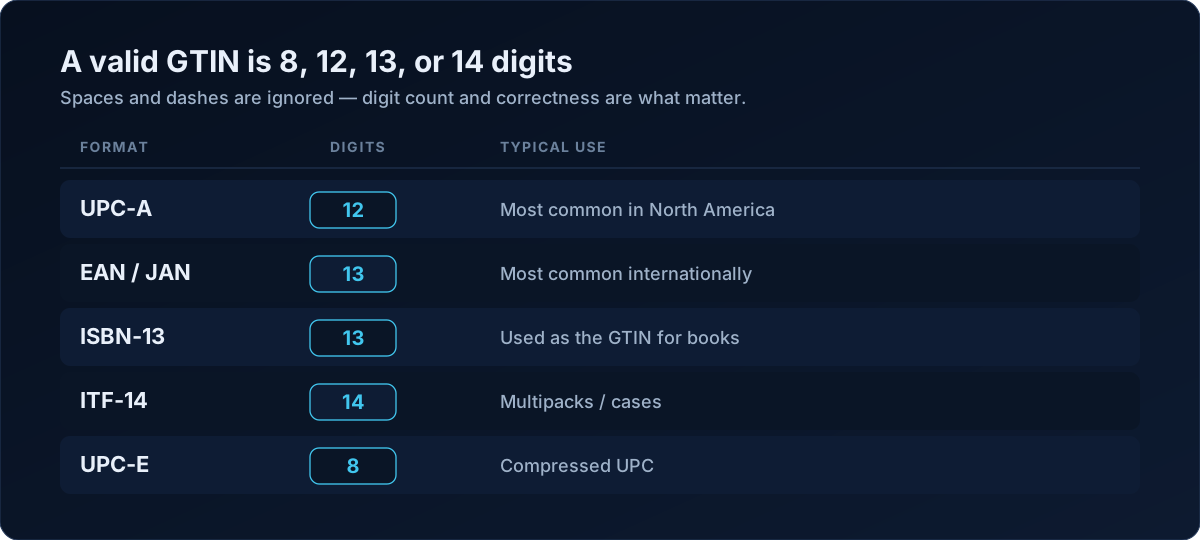
A valid GTIN per Google's spec is 8, 12, 13, or 14 digits:
- UPC-A — 12 digits (most common in North America)
- EAN/JAN — 13 digits (most common internationally)
- ISBN-13 — 13 digits, used as the GTIN for books
- ITF-14 — 14 digits (multipacks/cases)
- UPC-E — 8 digits
Spaces and dashes are ignored, so formatting is not the problem. Digit count and correctness are.
The Shopify gotcha: barcode is filled, but Google still says GTIN is missing
This is the single most common complaint, and it is maddening: the Barcode field is clearly populated in Shopify admin, yet Merchant Center insists the GTIN is missing for most products while a few come through fine.
The usual culprit is the "This product has a GTIN" / custom product setting in the Google & YouTube channel data. When that flag is unset (null) — neither true nor false — Shopify can stop transmitting the barcode to Merchant Center. The barcode is still sitting in your admin, but the channel never forwards it.
The fix that resolves this for most merchants is to explicitly set "custom product" to false (i.e., confirm the product does have a GTIN). You can do this on the product page under the Google & YouTube channel section, or in bulk via the channel's product editor. Once "custom product" is false and the barcode is present, the GTIN flows again on the next sync.
If you have a large catalog and this broke all at once on a specific date, this null-flag behavior is almost always why. Fix the flag, resync, and the GTINs reappear.
Do you fix it in Shopify or in Merchant Center?
Fix it in Shopify, not Merchant Center. Because Shopify is the source feed, edits you make directly in Merchant Center get overwritten on the next resync. Change the Barcode (and the "custom product" flag) in Shopify, let the feed resync, and the change sticks.
When you do not have a GTIN: MPN, brand, and identifier_exists
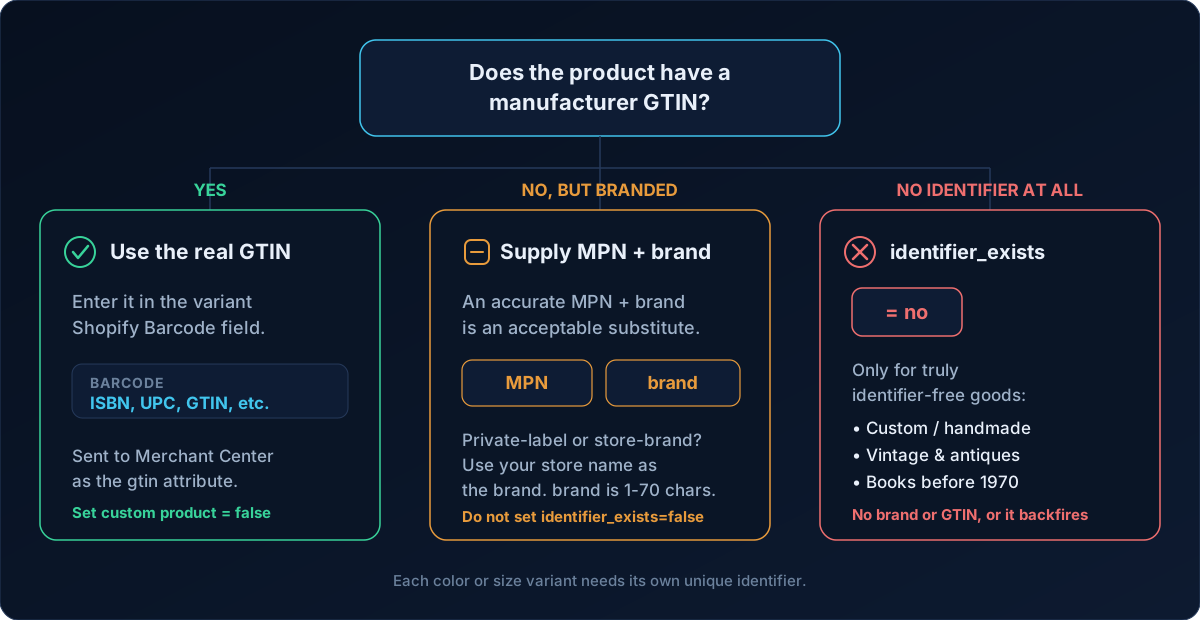
Not every product has a GTIN, and that is fine. Here is how to handle the common cases.
You make the product / it is private-label or store-brand. The brand attribute is required (1–70 characters) when a product has an associated brand or you are the manufacturer. If you make it and have no official brand, use your store name as the brand and supply an MPN. Do not set identifier_exists = false here — you do have a brand.
The product has a brand and MPN but no GTIN. An accurate MPN + brand together is an acceptable substitute for a GTIN. Supply both. Google recommends always providing brand and MPN when available, with or without a GTIN.
The product genuinely has no GTIN, MPN, or brand. This is where identifier_exists applies. It accepts yes/true/no/false (English only). Set it to no/false only for truly identifier-free goods:
- Custom or one-of-a-kind items (custom T-shirts, art, handmade)
- Vintage and antiques
- Books published before 1970
- Genuinely unbranded goods with no manufacturer code
Important: if you set identifier_exists = no but also submit a recognizable brand or a GTIN, Google sees evidence an identifier does exist and throws a new warning. Do not use this attribute to dodge legitimate identifiers — it backfires.
Dropshippers: AliExpress/Alibaba and no GTIN
Dropshippers often cannot get GTINs because suppliers do not provide them. You will not be banned for this — but you do have three legitimate paths:
- Get the real GTIN from the manufacturer. If the item is a branded, mass-produced product, the GTIN exists; ask the supplier or look it up by brand and model.
- Supply MPN + brand when a true GTIN is unavailable but the product is branded.
- Declare
identifier_exists = noonly if the item genuinely has none.
Because generic dropshipped listings compete with many identical ones, lean on differentiated content — unique titles, descriptions, and images — to stay competitive in Shopping.
Fixing invalid GTINs
An "invalid GTIN" is different from a missing one. Common causes:
- Stripped leading zeros (a spreadsheet ate the leading
0, turning a 12-digit UPC into 11). - Wrong digit count (a 10-digit UPC needs to be a full 12-digit UPC-A).
- Internal SKUs pasted into the Barcode field — your warehouse SKU is not a GTIN.
- Checksum errors. Every GTIN ends in a GS1 check digit; a wrong final digit makes it invalid. Verify with the GS1 Check Digit Calculator, and confirm the code is registered to the right brand using GEPIR (gepir.gs1.org).
Also avoid Google's restricted ranges — do not submit GTINs with prefixes 02, 04, or 2 (internal/variable-weight) or coupon prefixes 05, 98, or 99. These are reserved and will be rejected.
And never invent codes. Google is explicit: "Don't make up, guess, or include values from similar products." Fake identifiers can lead to actual disapproval — a far worse outcome than the limited-performance warning.
A note on variants
If a product comes in multiple colors or sizes, each variant must have its own unique identifier. Reusing one GTIN across every size/color triggers identifier errors. Each variant's Barcode field should hold its own distinct GTIN.
Doing this at scale without losing your mind
Fixing 6,000 or 23,000 products one at a time is not realistic. Options:
- Shopify bulk editor — add the Barcode column and the Google channel "custom product" field, and edit many rows at once.
- CSV export/import — export products, populate barcodes carefully (watch those leading zeros — format the column as text), and re-import.
- Automate it. The ShopFlix AI app on the Shopify App Store can detect missing and invalid identifiers, apply the correct fixes (including the "custom product" flag and
identifier_existslogic), and monitor your feed so the warning does not silently come back after a sync change.
Frequently asked questions
What does "Limited performance due to missing identifiers [gtin, mpn, brand]" actually mean — is my product disapproved?
No. It is a warning and a demotion, not a disapproval. Your product still serves in Google Shopping. Google is saying it cannot match the item to shopper searches as precisely without an identifier, so visibility is reduced until you add a GTIN (or a valid MPN + brand, or declare identifier_exists = no).
Where is the GTIN field in Shopify, and how do I add a barcode so it reaches Google Merchant Center?
There is no separate GTIN field — the GTIN is the variant Barcode field. Open the product, open the variant, enter the GTIN in Barcode (ISBN, UPC, GTIN, etc.), and save. Shopify sends it to Merchant Center as the gtin attribute through the Google & YouTube channel.
I already filled in the barcode in Shopify — why does Google still say the GTIN is missing?
Almost always the "this product has a GTIN" / custom product flag in the Google & YouTube channel is unset (null), which stops Shopify from transmitting the barcode. Explicitly set "custom product" to false so Google knows the product has a GTIN, then resync. The barcode will start flowing.
Do I need a GTIN, or is providing MPN and brand enough?
If your product category normally has GTINs, supplying the GTIN is best. If you genuinely cannot get one, an accurate MPN combined with brand is an acceptable substitute. Provide brand and MPN whenever available, GTIN or not.
What is identifier_exists and when should I set it to "no" (or "false")?
identifier_exists tells Google whether a unique identifier exists for the product. Set it to no/false only when the product truly has no GTIN, MPN, or brand — custom/handmade goods, art, vintage, antiques, or books published before 1970. If the product has a brand or GTIN, leave it as yes/true.
My products are dropshipped / handmade / vintage and have no GTIN — what do I do?
For branded dropshipped goods, get the manufacturer's real GTIN or supply MPN + brand. For genuinely identifier-free items (handmade, vintage, antiques, custom), set identifier_exists = no. You will not be banned for lacking GTINs — but do not invent codes, and strengthen your titles, descriptions, and images to compete.
What makes a GTIN "invalid," and how do I fix wrong digit count, leading zeros, or checksum errors?
A GTIN must be 8, 12, 13, or 14 digits with a correct GS1 check digit. Common breaks: stripped leading zeros, a 10-digit UPC that should be 12, internal SKUs pasted into the field, or a wrong final digit. Verify with the GS1 Check Digit Calculator and GEPIR, and avoid restricted prefixes (02, 04, 2, 05, 98, 99).
How long does Google take to clear the warning after I add the GTIN and resync the feed?
After you fix the Barcode (and "custom product" flag) in Shopify, the Google & YouTube channel typically resyncs within 24–48 hours, or you can trigger a manual sync. Google then re-reviews and usually clears the warning within about 1–3 business days.
The fastest way to know exactly which products are flagged — and whether the cause is a missing barcode, a null "custom product" flag, an invalid checksum, or a wrong identifier_exists value — is to run a free scan at shopflixai.com. To fix issues in bulk and keep them from silently returning after a sync, install ShopFlix AI from the Shopify App Store for automated fixes and ongoing feed monitoring.
Stop guessing why Google flagged your store
Run a free scan to see the exact issues Google checks for — then install the ShopFlix AI app to fix them automatically and stay approved.
0 Comments
No comments yet — share your experience or ask a question below.
Leave a comment