If Google Merchant Center is flagging your Shopify products with "Mismatched value (page crawl) [price]" or the availability equivalent, the message is more specific than it looks. Google's crawler isn't saying your price is wrong — it's saying the price (or stock status) in your feed doesn't agree with what it sees when it crawls your landing page. Until those two sources line up, the affected items get disapproved.
This is one of the most common — and most confusing — disapprovals for Shopify stores, because the data lives in three places at once: your Shopify product, the feed the Google & YouTube app generates, and your theme's structured data (JSON-LD). The good news: it's a data-consistency problem, not a penalty, and you can fix it without guessing. Here's exactly what's happening and how to resolve it.
What the disapproval actually means
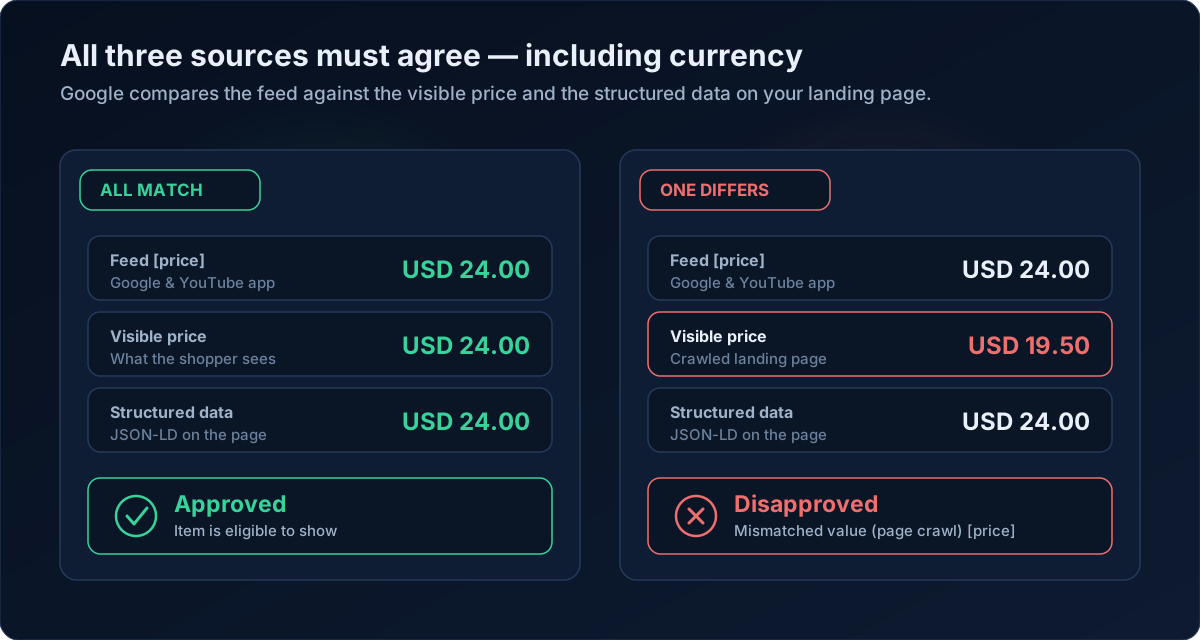
The app-facing label is "Mismatched value (page crawl) [price]" (and a matching one for availability). In Google's Help Center these map to "Mismatched product price" and "Inaccurate price or availability status due to inconsistency between feed and landing page."
When Googlebot crawls a product page, it compares the [price] and [availability] attributes in your feed against two things on the live page:
- The visible price a shopper sees, and
- The structured data (JSON-LD or microdata) embedded in the page's HTML.
All three — feed, visible price, and structured data — must agree, including the currency. If any one disagrees, Google treats it as a mismatch.
Crucially, a routine price or availability mismatch causes preemptive item disapproval (PID) of the affected products only. Google deliberately "errs on the side of caution and disapproves products likely to violate requirements." It does not, on its own, suspend your whole Merchant Center account — account suspensions come from the misrepresentation and policy-violation path, not from a normal feed-vs-page mismatch. So breathe: this is fixable, item by item.
Why only some variants get disapproved
The single most common Shopify cause is variant-level. Many themes and feeds submit the bare product URL (/products/red-shirt) instead of the full variant URL (/products/red-shirt?variant=123456789). When Google crawls the bare URL, it reads the default variant's price — usually the first or lowest one — and applies it to every variant in the group. Any variant priced differently then "mismatches," even though your data is technically correct.
The fix has two parts:
- Submit the full variant URL in the feed so each variant points to its own selected state.
- Make sure the page's structured data exposes the selected variant's price, not all variant offers at once. If your theme's JSON-LD lists every offer in one block, Google may read the first/lowest price for all of them.
Pair this with unique identifiers per variant — a distinct GTIN or MPN for each, grouped under a shared item_group_id — so Google can tell the variants apart instead of collapsing them.
To see exactly which of your products and variants are affected and where the mismatch originates, run a free scan at shopflixai.com. It checks your live store against Merchant Center policies — feed, landing-page price, and structured data — and points you to the specific items that disagree.
The sale-price and strikethrough trap
A recurring complaint: "Google is reading my sale badge or 'save £0.50' amount as the price." When a page shows a strikethrough original price next to a discounted price, Googlebot can grab the wrong number — sometimes the struck-through price, sometimes the discount itself.
To keep this clean:
- Use Shopify's native Compare-at price field rather than theme apps that inject extra price text the crawler can misread.
- Make sure your JSON-LD reports the actual selling price (the
priceshoppers pay), not the compare-at value. - Google specifically warns against enabling automatic price updates when a page shows multiple strikethrough/sale prices, because the system may crawl the wrong one. If your storefront is heavy on stacked discounts, fix the feed at the source instead of relying on automation.
Fixing availability mismatches (in stock vs out of stock)
The availability version reads like: "Value on the landing page = out_of_stock, value in the data feed = in_stock." Valid availability values are exactly four: in_stock, out_of_stock, preorder, and backorder. Shopify must map your inventory state into these — never send raw true/false.
A frequent point of confusion is backorders. If you enable inventory tracking plus "Continue selling when out of stock" (Shopify's backorder setting), a product with zero units is still purchasable — but if your feed or structured data reports it as out_of_stock, that's a mismatch. For matching purposes, Google treats in_stock, preorder, and backorder as compatible with in_stock. So a backordered, still-sellable product should surface as in_stock or backorder, not out_of_stock.
Check that:
- Your Shopify inventory policy (track + continue selling) reflects reality.
- The Google & YouTube app feed maps that policy to a valid availability value.
- Your theme's structured data shows the same availability for the selected variant.
Where to fix it: Shopify, the app, or the theme?
Almost always, you fix the source of truth first — the Shopify product — then make the feed and structured data follow. Walk the hierarchy:
- Make price and availability identical across Shopify, the feed, and the theme's structured data, currency included.
- Ensure variant URLs and per-variant identifiers (GTIN/MPN,
item_group_id) are in place so one variant's value can't bleed onto others. - Verify with Google's Rich Results Test. Paste a disapproved variant URL and confirm the crawled price/availability matches your feed. This is the fastest way to see what Googlebot actually reads — including cases where JavaScript-rendered prices don't appear in the static HTML, or Shopify Markets multi-currency shows a price in a different currency than the feed submits.
- Raise feed sync frequency if your prices or stock change often, or add a supplemental price-and-availability feed so updates reach Google faster. The Google & YouTube app syncs periodically, not instantly, so a price you just changed in Shopify can still mismatch for a while.
You usually do not need to hand-edit theme code. If your theme's JSON-LD is the culprit (listing all offers at once, or omitting the selected variant), the cleanest path is a tool that manages correct, per-variant structured data for you rather than a risky manual edit that might duplicate existing markup.
If you'd rather not chase this product by product, install ShopFlix AI from the Shopify App Store. It auto-fixes the underlying data mismatches and monitors your store continuously, so when a price change or restock drifts out of sync it's caught before Google disapproves the item.
Frequently asked questions
What does "Mismatched value (page crawl) [price]" actually mean in Google Merchant Center?
It means the [price] in your feed doesn't match what Google's crawler found on the landing page — either the visible price or the structured data (JSON-LD/microdata), including currency. Google compares all three and disapproves the item until they agree.
Why does Google disapprove only some of my Shopify variants for price and not others?
Usually because the feed submits the bare product URL, so Google reads the default variant's price and applies it to all variants. Variants priced like the default pass; differently-priced ones "mismatch." Submitting full variant URLs and exposing the selected variant's price in structured data fixes it.
How do I make Google read the correct variant price instead of the default/lowest one?
Use the full variant URL (/products/handle?variant=ID) in the feed, give each variant a unique GTIN or MPN under a shared item_group_id, and ensure the page's JSON-LD reports the selected variant's price rather than listing every offer in one block.
How long does it take for products to get re-approved after I fix the price?
Googlebot re-crawls disapproved products automatically over the next few hours to days; reviewing a landing page can take up to about 12 hours. Items reapprove once the crawled value matches the feed. In practice, most merchants see re-approval within 1–3 days.
Will a price or availability mismatch get my whole Merchant Center account suspended?
No. A standard feed-vs-page mismatch triggers preemptive disapproval of the affected items only. Account suspensions come from misrepresentation or broader policy violations — not from a routine price or availability mismatch.
Should I turn on "automatic item updates" / automatic improvements — and does that actually fix the mismatch?
Automatic item updates (price, availability, condition) are on by default and can correct temporary mismatches using your page's structured data. But Google is explicit that they're "not a replacement for regular updates of your product data" and only address a small percentage of products. Don't rely on them — and avoid automatic price updates if your pages show multiple strikethrough/sale prices, since Google may crawl the wrong one.
Why does my Shopify product show "out of stock" in Google when it's in stock or on backorder?
Your feed or structured data is likely reporting out_of_stock while the product is actually sellable. If you use "Continue selling when out of stock" (backorder), the item should map to in_stock or backorder — Google treats both as compatible with in_stock. Never send raw true/false; use the valid values: in_stock, out_of_stock, preorder, backorder.
How do I fix a price mismatch caused by a sale price or discount badge?
Use Shopify's native Compare-at price instead of apps that inject extra price text, and make sure your JSON-LD reports the actual selling price. Avoid enabling automatic price updates when a page shows several strikethrough prices, because the crawler can pick the wrong one.
Do I fix this in Shopify, in the Google & YouTube app, or in my theme's structured data?
Fix the source of truth — the Shopify product — first, then make the feed and structured data match. The mismatch is resolved when all three agree. Theme JSON-LD only needs attention if it lists all offers at once or omits the selected variant's value.
Why does Google see a different price than what's shown on my page?
Common culprits are JavaScript-rendered prices that don't appear in the static HTML Googlebot crawls, or Shopify Markets multi-currency showing a price in a different currency than the feed submits. Use Google's Rich Results Test on a variant URL to see exactly what the crawler reads.
Is there a strict deadline before I lose the products?
There's no fixed grace clock for this specific issue. You may get a warning email with examples and a window where items still show with limited performance. Correct the data and let the automatic re-crawl reapprove the items — typically within a few days.
Stop guessing why Google flagged your store
Run a free scan to see the exact issues Google checks for — then install the ShopFlix AI app to fix them automatically and stay approved.
0 Comments
No comments yet — share your experience or ask a question below.
Leave a comment