Of all the Merchant Center warnings, "Checkout incomplete" is the one merchants argue with hardest — and understandably. You open your own store, add a product, pay, and the order lands in Shopify. Nothing is broken. Yet Google says its reviewer could not finish a purchase, and there is a suspension deadline attached.
Both things are usually true at once. Shopify's checkout itself is rarely the problem; it is one of the most battle-tested checkouts on the web. What fails is a configuration that behaves differently for the person Google sent than it does for you. Here is how the check works, the Shopify settings that quietly break it, and how to test your store the way a reviewer does.
What Google is actually checking
The "Checkout incomplete" issue comes from Google's checkout requirements, and the standard is narrower than "our checkout works." Google expects that a shopper can:
- Reach the product page and add the item to a cart without obstruction.
- Complete the entire purchase on your own website, using standard payment methods, without being asked for details beyond what is needed to pay.
- Buy as an individual — not only as a business, and not through a quote request or an enquiry form.
- See a purchase confirmation, with an estimated delivery date.
- Pay a price that does not increase between the feed and the final checkout total. It may decrease with a promotion; it may not go up because of a fee that appears at the last step.
Availability matters too: Google expects the availability in your product data to match what your landing page and your checkout actually allow. And any minimum order value has to be expressed in your shipping settings, not sprung on the shopper at the end.
If any one of those fails, the failure is account-level. It is not an item-level disapproval you can ignore for a few products.
Why it works for you and not for the reviewer
The reviewer is not you, and that difference explains almost every case:
- They are in a country you target, which may not be the country you shop from.
- They arrive with no account, no session, no saved address — a completely cold visit.
- They land directly on a product URL from the feed, not through your homepage.
- They may be on mobile, and they may be behind a crawler first that never renders a JavaScript-gated page.
So the question is never "does my checkout work?" It is "does my checkout work for a first-time, logged-out shopper in the country I advertise to?"
The Shopify settings that break it
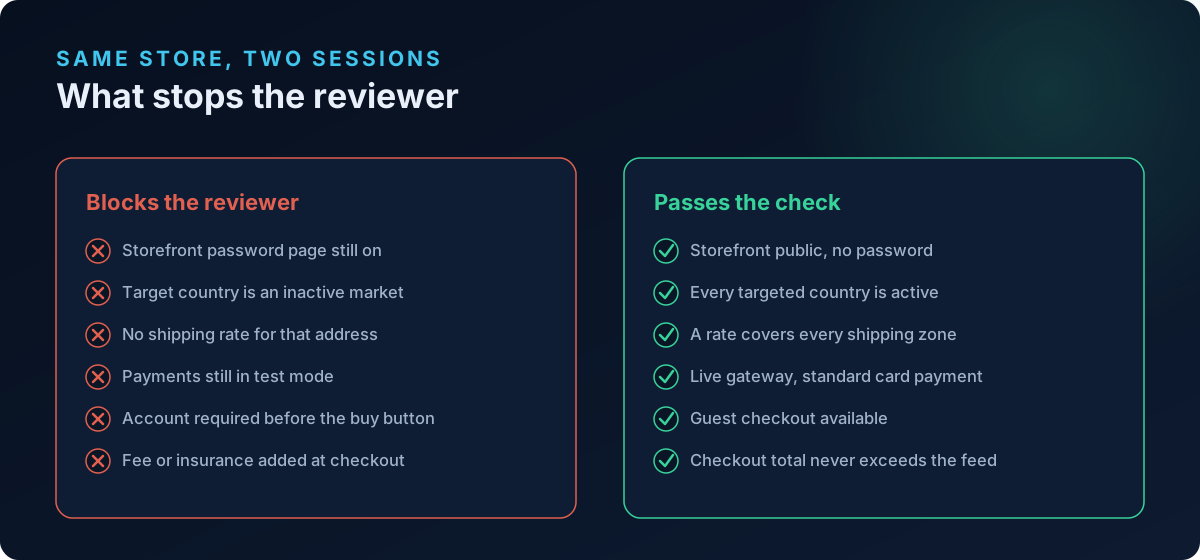
1. Storefront password protection. Online Store → Preferences → Password protection. A password page makes every product URL unreachable. This is also the single most common cause of "product page unavailable" crawl errors alongside checkout failures. If you use a password page for a soft launch, you cannot run Shopping ads at the same time.
2. The target country is not an active market. Settings → Markets. If you advertise to a country whose market is inactive — or where the product is not published — the reviewer sees a redirect, an unavailable page, or a catalogue they cannot buy from.
3. No shipping rate covering the reviewer's address. Settings → Shipping and delivery. This is the classic one. The cart loads, the address goes in, and checkout says no shipping methods are available for your address. Every country you target needs a zone with at least one rate — even a flat rate or a $0 rate.
4. Payments not fully live. Test mode left on, the Bogus Gateway still enabled, or a gateway restricted to certain billing countries. Manual methods alone — bank transfer, "pay on WhatsApp", cash on delivery only — are also a risk, because Google expects standard payment methods to be present.
5. A gate before the buy button. Forced account creation, a wholesale/B2B lock, an age verification app that blocks rendering, or a "request a quote" flow. Accounts are allowed, but sign-up must be free and straightforward, and an individual must still be able to buy.
6. Costs that appear late. Checkout apps that auto-add shipping insurance, a mandatory add-on, a handling fee, or a default tip will push the checkout total above the advertised price. That is both a checkout failure and, in Google's 2025 clarification on misleading pricing, a misrepresentation risk.
7. Currency and price mismatch across markets. If a market shows a converted or rounded price that differs from the feed's price for that country, the reviewer sees a number that does not match the ad.
8. Availability drift. The feed says in stock; the variant is sold out, hidden, or unpublished. Google treats a product it cannot actually buy as a checkout failure, not a data nitpick.
9. Missing confirmation. Rare on Shopify, but worth checking: if order confirmation emails are paused or a custom post-purchase page misfires, there is no confirmation for the reviewer to see.
Run the reviewer's test yourself
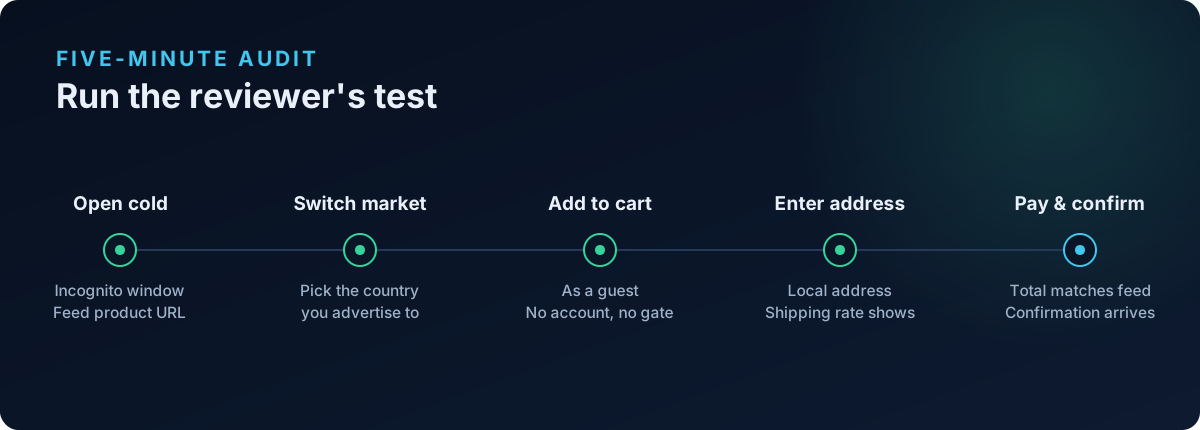
Do this in a private/incognito window, on mobile if you can:
- Paste a product URL straight from your feed — not your homepage.
- Switch the store to the country you target using the market or currency selector.
- Add to cart as a guest. Note whether anything demands an account, an age answer, or a popup dismissal first.
- Enter a real address in that country and check that a shipping method appears.
- Complete a small real order with a card, then refund it. Compare the final total against the feed price, line by line.
- Confirm the order confirmation page and email arrive.
Anywhere that flow stalls is what the reviewer saw.
Fix first, then request the review
Google usually emails a warning with a deadline before suspending — commonly around seven days, though egregious violations can suspend immediately. If the issue is resolved inside the warning period, you may not need a review at all.
When you do request one, sequence it properly. Fix the setting on the live store, verify the flow end-to-end yourself, and give Google time to recrawl — recrawls typically settle within 24–48 hours. Then request the review from Merchant Center's account issues / Policy Manager, or from Google & YouTube → Settings in your Shopify admin. Reviews take roughly 3–7 business days, and repeated failed requests can extend a cooldown during which the review button is disabled. One correct request beats four hopeful ones.
One caveat worth knowing: mass waves of "product page unavailable" notices have appeared after platform-wide outages, hitting stores that were never actually broken. If every product flags at once and your pages load normally, verify with a live crawl before you start changing settings.
When "checkout incomplete" is really a trust problem
If your checkout genuinely passes the test above and Google still will not clear the account, the trigger is usually somewhere else in your store's identity: a business address that resolves to a mail drop, a brand name implying a country you do not operate from, or policy pages that contradict each other. Reviewers look at the whole store, and a checkout complaint is sometimes the label attached to a broader legitimacy doubt — the pattern behind being suspended again after you fixed everything.
You can check both layers at once. Run a free scan at shopflixai.com — it tests your live store against Merchant Center requirements, including the checkout and availability signals above, and the Deep scan adds a Trust & Identity layer that flags the business-legitimacy contradictions most feed tools never look at.
Stop guessing why Google flagged your store
Run a free scan to see the exact issues Google checks for — then install the ShopFlix AI app to fix them automatically and stay approved.
0 Comments
No comments yet — share your experience or ask a question below.
Leave a comment